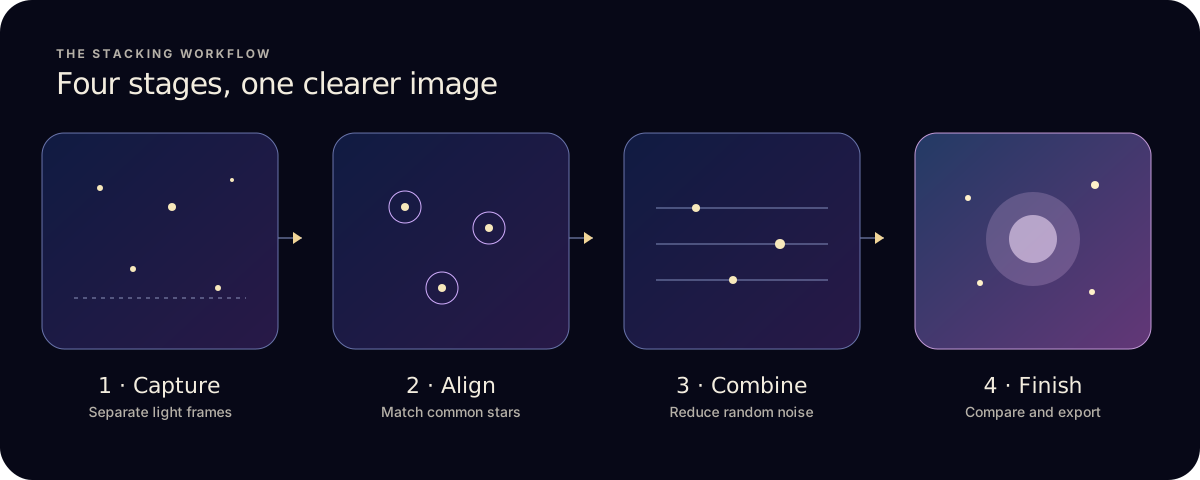
- Shoot several separate, similarly exposed photos of the same sky.
- Import them from Photos and drop any that are blurred or cloudy.
- Align and stack, then compare the result with a single frame.
- Export. Free accepts up to 10 light frames per stack.
1. Capture a sequence, not one long guess
Stacking needs several exposures of the same patch of sky, taken one after another.
- Keep the phone still. A stable support helps, and a timer or remote trigger stops shake from touching the screen. Apple’s Night mode guide recommends a tripod for more detailed low-light photos.
- Find dark sky and focus. Choose a dark location when possible and check focus on a bright star.
- Take a test frame before committing to a long sequence.
- Keep the framing consistent for every exposure.
2. Choose the frames that belong together
In Photos, pick images of the same target with similar framing, focus and exposure. A small set of good frames is usually more useful than a larger set with a few mismatched ones.
- Keep sharp stars, consistent exposure, the same scene and enough overlap for alignment.
- Reject strong shake, cloud cover, big focus changes, or a target that leaves the frame.
- Optional: compatible RAW or Apple ProRAW files can be imported through Files on Pro.
Start with up to 10 frames on Free. Pro removes that limit.
3. Align, stack and finish on iPhone
- Import. Open Astro Stacker and bring your sequence in from Photos.
- Let it align. The app registers common stars between frames and checks each frame’s quality.
- Stack. Pick a mode. Quick averages every frame for a fast first look. Quality, the default, uses kappa-sigma rejection to suppress planes and satellites and drops the weakest frames. Max Detail takes longest and is the most selective. See which mode to pick.
- Compare. Put the result next to an original frame. Raise contrast carefully, because pushing a faint background too hard makes noise and gradients more visible.
- Export. JPG or PNG are easiest to share. TIFF and FITS are there when you want a processing file, with 16-bit export on Pro.
Stacking and editing run on-device. Optional account, sync and purchase features may need internet access. The features guide explains alignment, calibration and every stage of the workflow.
If the stack looks worse than one frame
- “Not Enough Usable Stars”
- The app couldn’t find enough clear stars to align. See how to fix it.
- Stars look soft or doubled
- Check focus and alignment. Remove frames with shake or too little overlap, then retry with a tighter sequence.
- The sky is still grainy
- Stacking reduces random noise but can’t recover detail missing from every exposure. Better focus, a darker sky and more good frames help.
- A trail survives the stack
- Run Quality or Max Detail instead of Quick, or remove the affected frame. No rejection method guarantees every moving object disappears.
- The foreground smears
- Alignment follows the stars, so a nearby landscape can shift. Plan to handle sky and foreground separately when that matters.
Want to know what happens to your frames under the hood? Read how astrophotography stacking works.
Used to stacking on a computer? The DeepSkyStacker and Sequator comparison explains what carries over to iPhone and what doesn’t yet.
Using telescope frames instead? Read how to stack compatible FITS files on iPad.