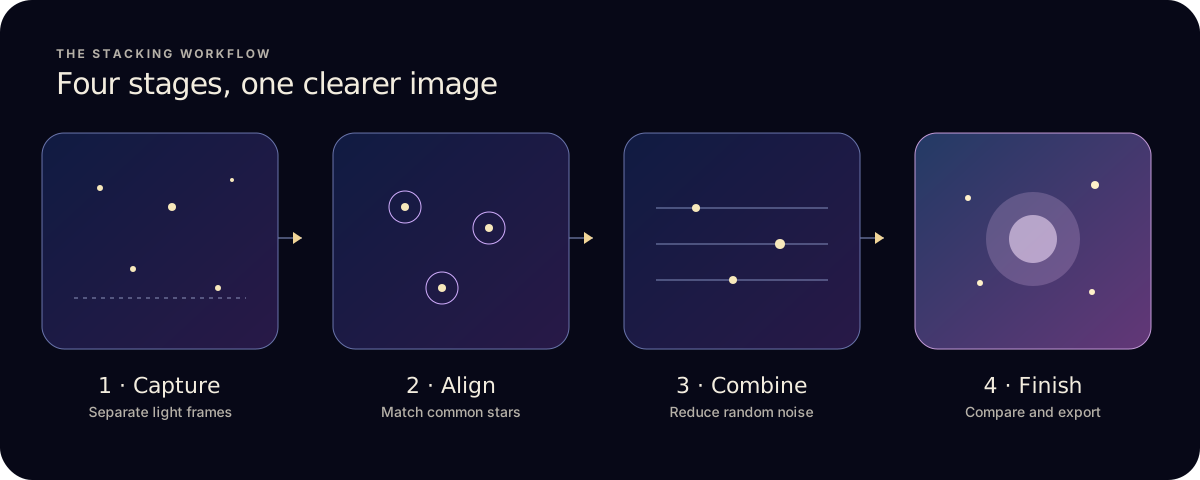
- Transfer the original FITS light frames to the iPad Files app.
- Keep one target and one capture session together.
- Import them in Astro Stacker Pro and check alignment and quality.
- Stack and export. Add calibration frames later if you have matching data.
1. Move the original files into Files
- Export the individual light exposures from your capture device to somewhere the Files app can open, such as local storage or a connected drive.
- Keep the original FITS files, not a preview JPEG or the telescope app’s finished image.
- Open one file to confirm the transfer finished, then keep the session in a clearly named folder.
2. Select a consistent light-frame sequence
Choose exposures of the same target made with the same imaging setup. Don’t mix crops, filters or exposure conditions until you know how they affect registration, and remove files that are corrupt, out of focus or full of cloud.
Know which frames you have:
- Light frames: your actual sky exposures, the images to align and combine.
- Dark frames: covered-sensor exposures matching the lights, for fixed thermal patterns and hot pixels.
- Flat frames: evenly lit exposures that correct vignetting and dust shadows.
- Bias or dark-flat frames: used to calibrate the flats, depending on your workflow.
3. Import, align and combine on iPad
- Import your FITS light frames through Files in Astro Stacker Pro.
- Let it align. The app finds common stars and assesses frame quality before combining.
- Stack. Run Quick first to inspect the data, then Quality or Max Detail, which reject outliers and drop the weakest frames automatically. The stack modes guide compares them.
- Finish and export on iPad, including FITS and 16-bit options on Pro.
The Astro Stacker features page shows each stage, from import to export.
When should you add calibration frames?
Calibration helps when repeatable sensor artefacts, dust or vignetting are visible. It’s optional for a first stack.
If you have matching darks, flats, dark-flats or bias frames, Pro can apply them before stacking. Mismatched calibration frames can make an image worse, so compare a calibrated result with a simple light-only stack. NASA’s smartphone astrophotography guide explains registration and calibration in detail.
Check the result before export
- Doubled or smeared stars
- Inspect rejected frames, focus and overlap. Try a smaller group of matching lights.
- Dark corners or dust circles
- Add well-matched flats if you have them. Flats won’t fix every gradient.
- Unexpected colour or brightness
- Check that the imported files share the same capture settings and processing state.
- Only a finished telescope image
- Use it as a single image for finishing. Ask your capture software to save individual exposures for a true restack.
Used to DeepSkyStacker or Sequator? The desktop stacker comparison covers what carries over, and what doesn’t yet, including colour FITS from one-shot-colour cameras.
Starting from iPhone photos instead? Use the iPhone stacking guide.