
Quick answer
- Use a tripod or rest the phone on something still. Night mode allows its longest exposures only when the phone is steady.
- Stay on the main 1× camera. It gathers the most light of any iPhone lens.
- Turn the flash off, tap a bright star or distant light to focus, and drag exposure down a little.
- Slide the Night mode time to Max, shoot with the self-timer, and take 10 to 30 frames in a row.
1. The settings that matter
- Hold it still. On a tripod the Camera app can extend a Night mode exposure up to 30 seconds. Handheld, it keeps exposures short to avoid shake. A small phone tripod or a phone wedged against a wall both work.
- Use the 1× lens. The ultra wide (0.5×) fits more sky but collects less light, and the telephoto lenses are darker again. Start on 1×.
- Turn the flash off and leave Live Photos off. Neither helps at night.
- Focus on light, not darkness. Tap a bright star, a planet or a distant streetlight. Touch and hold to lock focus and exposure so they don’t change between shots.
- Lower exposure slightly. After locking, drag the sun icon down a little. A slightly darker sky keeps faint stars from being washed out and gives the stack more room later.
- Set Night mode to Max. Tap the Night mode icon and slide the time to its longest setting. It only shows long times when the phone is steady.
- Use the self-timer (3 or 10 seconds) so tapping the shutter doesn’t shake the phone. A paired Apple Watch can also work as a remote shutter.
2. iPhone 13, 14, 15, 16 and 17
The settings above are the same on every recent model. What changes is the file format you can use:
| Model | Night mode | Apple ProRAW | Best lens for stars |
|---|---|---|---|
| iPhone 13, 13 mini | Yes | No | Main 1× |
| iPhone 13 Pro, 13 Pro Max | Yes | Yes | Main 1× |
| iPhone 14, 14 Plus | Yes | No | Main 1× |
| iPhone 14 Pro, 14 Pro Max | Yes | Yes | Main 1× |
| iPhone 15, 15 Plus | Yes | No | Main 1× |
| iPhone 15 Pro, 15 Pro Max | Yes | Yes | Main 1× |
| iPhone 16, 16 Plus, 16e | Yes | No | Main 1× |
| iPhone 16 Pro, 16 Pro Max | Yes | Yes | Main 1× |
| iPhone 17 and 17 Pro models | Yes | Pro models | Main 1× |
On a Pro model, turn on Apple ProRAW in Settings → Camera → Formats, then tap RAW in the Camera app. ProRAW files keep more of the faint detail for stacking. They are large, so check your free storage before a long series. Importing RAW and ProRAW into Astro Stacker needs Pro.
On other models, the standard HEIF or JPEG photos stack well too. Keep every frame in the same format.
3. Shoot a series, then stack it
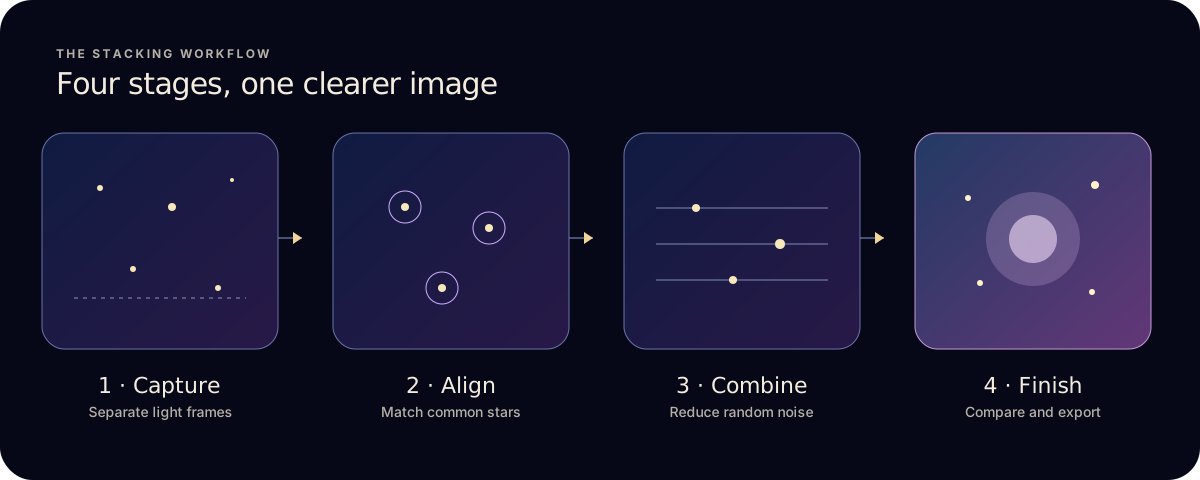
- Take 10 to 30 photos without moving the phone. Each one is a frame for the stack.
- Check one frame. Zoom in: stars should be small, sharp dots. If they are streaks, shorten the series or check that the tripod is firm.
- Stack them in Astro Stacker. Import the series from Photos, let the app align the stars and stack. The free plan stacks up to 10 light frames. The iPhone stacking guide walks through every step.
Stars move across the sky, so very long series drift. Twenty minutes of shooting is plenty for a first stack.
4. Common questions
- Can an iPhone be used for astrophotography?
- Yes, for wide shots of stars, constellations and the Milky Way from a dark site. It can’t replace a telescope for small, faint galaxies and nebulae.
- How do I get stars to show up in iPhone photos?
- Get away from streetlights, wait until it is fully dark, keep the phone still so Night mode can expose for longer, and avoid nights near a full moon. See the new moon dates.
- How do I shoot the Milky Way with an iPhone?
- Use the same settings from a dark site, at the right time of year. The Milky Way season guide shows when the bright core is up.
- Is my sky dark enough?
- Check its Bortle class. From a suburb you’ll see bright stars. From a rural site the Milky Way appears.
Photos taken? Read how to stack astrophotography photos on iPhone.